How To: Reset Your Password
This quick guide explains how to reset your password if you’re unable to access your account or do not have access to the email on your certification application. Follow the steps below reset your password.
Reset Your Password
1. Locate Our Website
Important note: If you do not receive a password reset email, you may have registered with an integrated login. At the login screen select ‘Sign in with Google’ or ‘Sign in with Microsoft’.
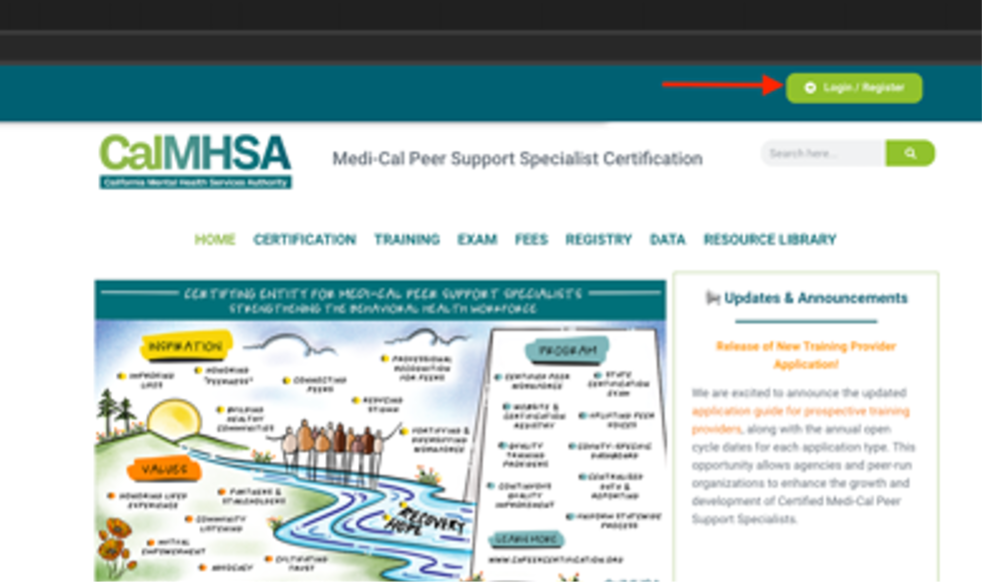
- Navigate to www.capeercertification.org
2. Navigate to the Login Screen
- Select the green Register/Login button at the top right.
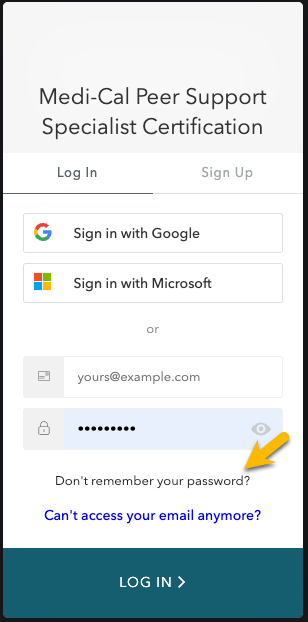
- At the login screen, select ‘Don’t remember your password?’
3. Reset Your Password
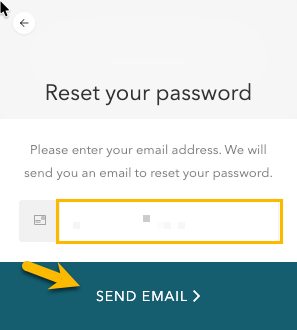
- At the ‘Reset your password’ screen, enter your current application email address and select ‘SEND EMAIL’. You will receive an email with a link to reset your password.
4. Didn't Receive a Reset Password Email?
- If you do not receive an email, you may have logged in with an integrated login. Go back to the login screen and select ‘Sign in with Google’ or ‘Sign in with Microsoft’.
- If you still cannot login, please email PeerCertification@calmhsa.org for support.
- If you do not have access to your email, see the next steps.
Unable to Access Your Email
If you do not have access to the email address on your application, follow the next steps.
1. Navigate to Login Screen
- At the login screen, select ‘Can’t access your email anymore?’
2. Verify Identity
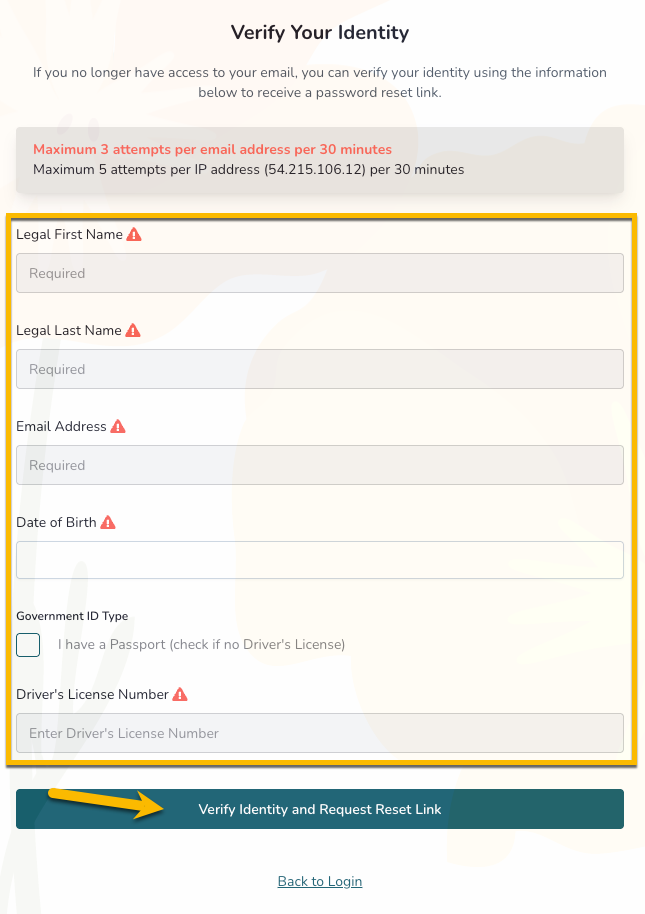
- On the Verify Your Identity screen, enter the required information.
- Note: The information you enter must match exactly what is on your current certification application, including your email address.
3. Enter Your Information
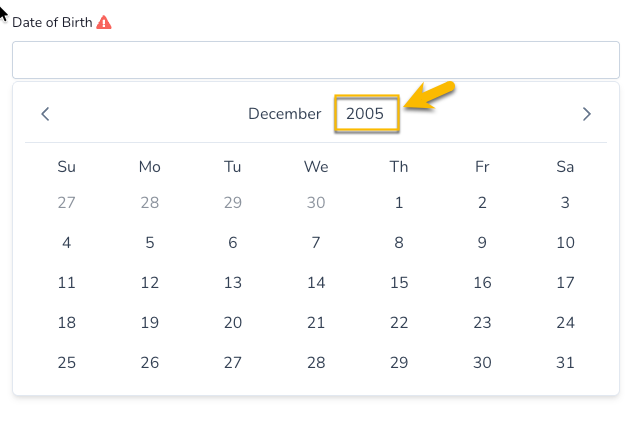
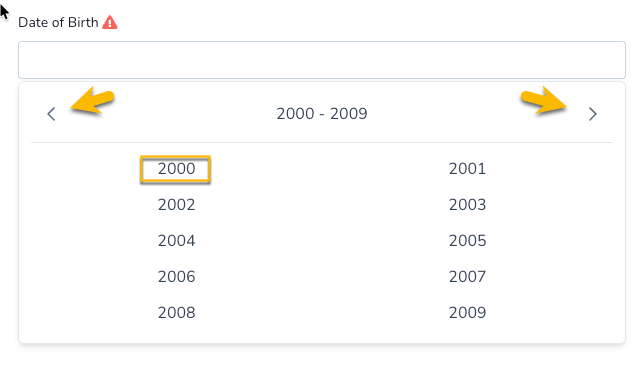
- For Date of Birth field, you must first select the Year
- Scroll to find and select your birth year.
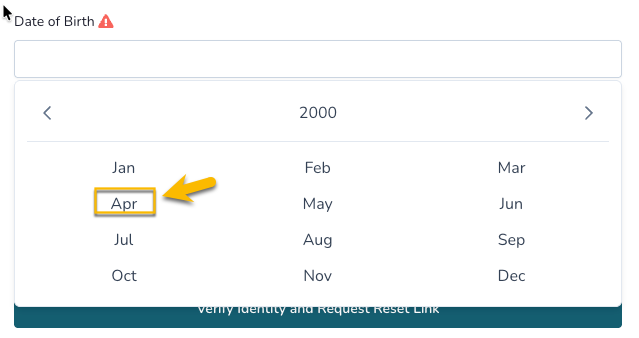
- Then select your birth month.
- Then finally, select your birth day.
- You will see your date of birth populated.
- Select ‘Verify Identity and Request Reset Link’.
4. Open Reset Page
- A ‘Password Reset Link Generated’ pop-up will display.
- Select ‘Open Reset Page’
- Alternatively, you can also copy link and paste as a URL in a new tab in your browser.
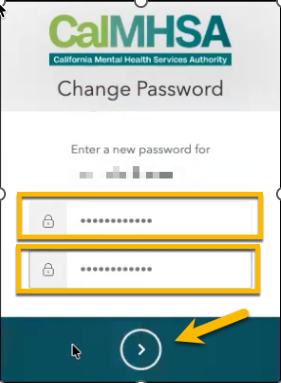
- A ‘Change Password’ screen appears.
5. Change Password
- Enter and re-enter your new password and select the arrow to save.
- You should see a confirmation page that says your password has been reset.
6. Login
- Go back to the login page and log in with your new password.
- Note: If you cannot access your email, change your email using the How to: Change Your Email instructions.
If you need additional support, please email peercertification@calmhsa.org.