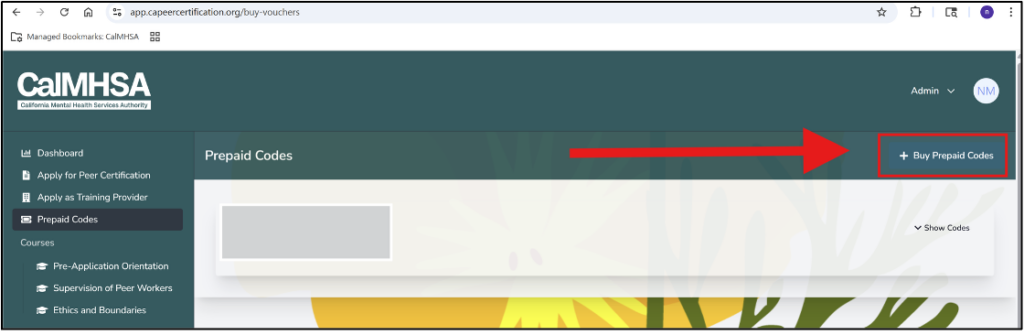
This article explains the step-by-step process for purchasing prepaid codes through the CalMHSA Medi-Cal Peer Support Specialist Certification website using a credit card. Prepaid codes allow purchasers (such as individuals, employers, agencies or organizations) to pay program fees in advance. The prepaid codes may then be used or distributed at the purchaser’s discretion to be applied to the intended fee.
1. Login to to the Peer Certification Website
Account Creation and Verification: To begin the purchase process, the purchaser must first create and verify an account on the Peer Certification website.
During registration, the purchaser will be asked to provide:
Full Name
Email Address (email verification required)
Address (validated using Google address verification)
Agency Name or any other preferred name that will be used to group your purchase
For additional security, Two-Factor Authentication (2FA) is enabled for all purchaser accounts via email verification
Once the email is verified and login is complete, the purchaser will gain access to the Prepaid Code Dashboard, where purchases and generated codes can be managed.
If you are an already registered user, you can purchase the prepaid codes by clicking on the “Prepaid code” quick access link on the left navigation bar or by bookmarking this link: Prepaid Code Dashboard
2. Legal and Fee Acknowledgements
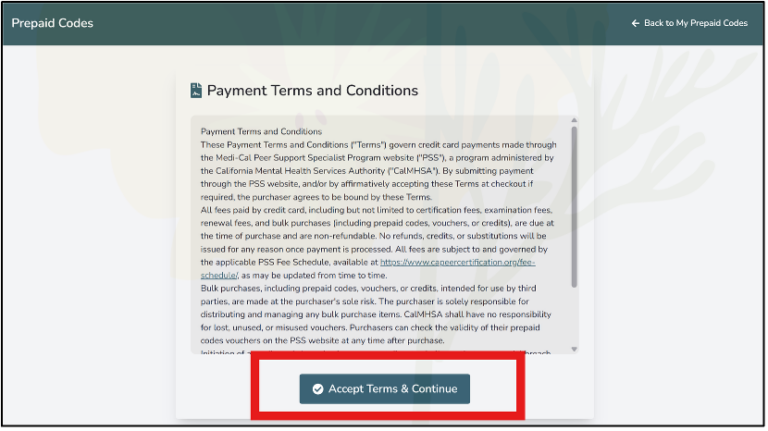
Before accessing the purchase page, purchasers must review and accept the Payment Terms and Conditions each time they attempt to make a purchase.
Purchasers must confirm that they understand and agree to the following key terms:
Payment is due at the time of purchase
All payments are non-refundable
No credits, substitutions, or reversals are allowed
CalMHSA is not responsible for lost or misused prepaid codes
Credit card chargebacks constitute a material breach of the agreement
Any prepaid codes associated with a chargeback will be invalidated
The purchaser must check the acknowledgement boxes to proceed.
3. Select Items on the “Buy Prepaid Codes” Page
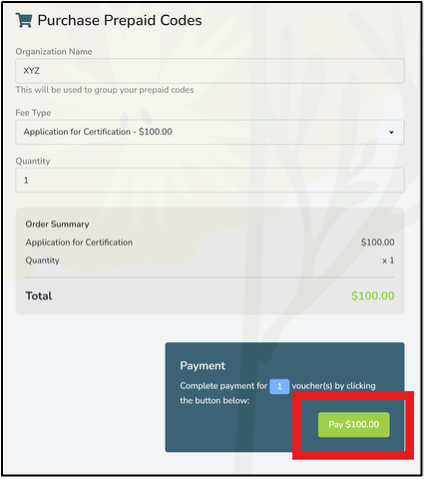
On the Buy Prepaid Codes screen, the purchaser selects:
The fee type(s) they wish to purchase
The quantity of prepaid codes needed
The system automatically calculates the total purchase amount.
To proceed, the purchaser clicks: “Pay $[Amount] and Generate Prepaid Codes.”
Note: Only one fee-type per transaction can be purchased at a time. To purchase another fee type, please continue step 1-3.
4. Payment Authorization
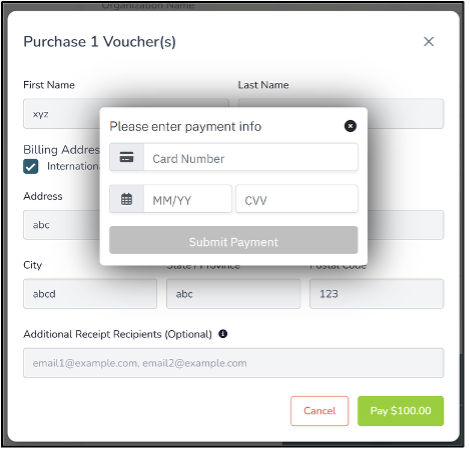
After clicking “Pay $[Amount] and Generate Prepaid Codes,” the system displays a Purchaser Confirmation Screen summarizing the order.
The purchaser will then:
Enter their credit card payment details
Review the final payment summary
Click “Submit Payment” to complete the transaction
5. Prepaid Code Generation
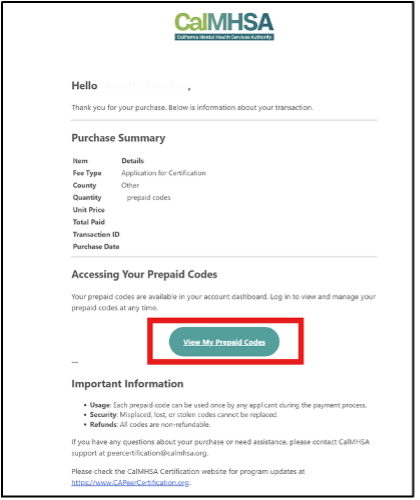
Once the payment is successfully processed, the system generates prepaid codes. The purchaser will receive a confirmation message on the purchase system and an automated email with a receipt. The email is sent to the purchaser on file and includes:
Payment receipt
Total transaction amount
Transaction confirmation
Link to access the generated prepaid codes
6. Manage Prepaid Codes from the Dashboard
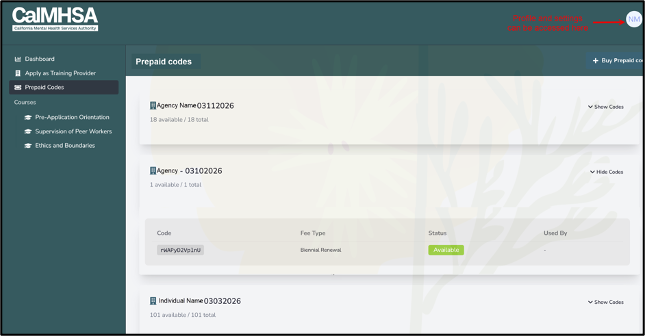
After purchase, all prepaid codes are available in the Purchaser Dashboard. There are two ways to access the dashboard:
Click the direct link to view the prepaid code dashboard from the email confirmation of the purchase; and/or
Login directly to prepaid code dashboard on the website using this link
Each code is associated with the following details:
Fee Type
Group Name (Agency Name + purchase date format: dd.yy)
Purchase Date
From this dashboard, purchasers can view:
The prepaid code
The associated fee type
The status of the code (e.g., unused or redeemed)
Any applicant assigned to the code
This dashboard enables purchasers to track and manage prepaid codes issued to applicants. It displays the purchaser’s name and the date of purchase in a list view. The dynamic dashboard also shows the total number of prepaid codes purchased and how many remain available.
Each prepaid code is assigned a status: “Available” (shown in green) indicates the code has not yet been used, while “Invoiced” (shown in red) indicates the code has been redeemed by an individual. When a code is used, the name of the individual who redeemed it is displayed; if the code has not been used, this field remains blank.